Support & Documentation
Everything you need to know about using Medial
Getting Started
Learn how to create your account and get started with Medial
Creating Your Account
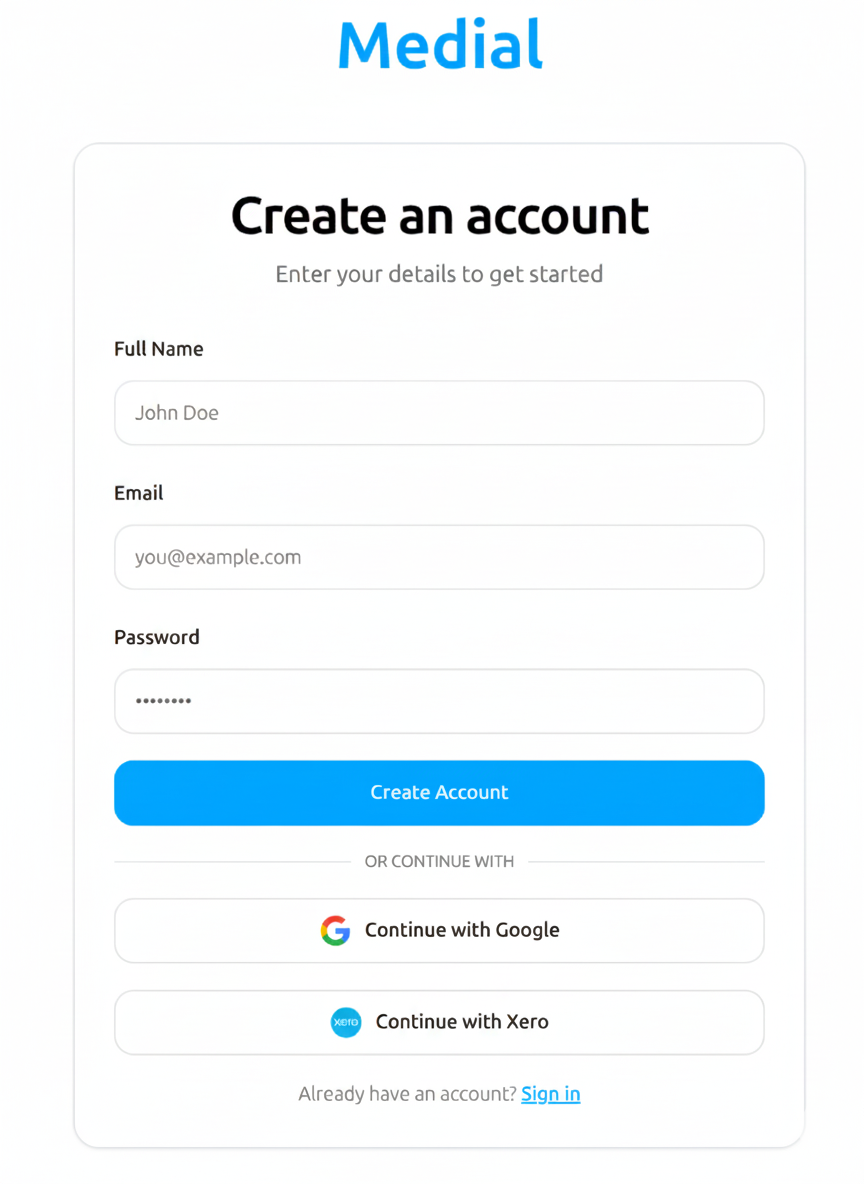
Visit the Sign Up Page
Navigate to the sign up page by clicking the "Start free trial" button on the homepage or visiting the sign up link directly.
Enter Your Details
Provide your full name, email address, and create a secure password. Make sure to use a valid email address as you'll need it for verification.
Verify Your Email
After signing up, you'll receive a 6-digit verification code via email. Enter this code on the verification page to activate your account.
Start Using Medial
Once verified, you'll be automatically logged in and redirected to your dashboard where you can start connecting your Xero account and uploading files.
Note: If you don't receive the verification email, check your spam folder or request a new code from the verification page.
Connect to Xero
Integrate your Xero account to access financial data
Setting Up Xero Integration
Access Connectors
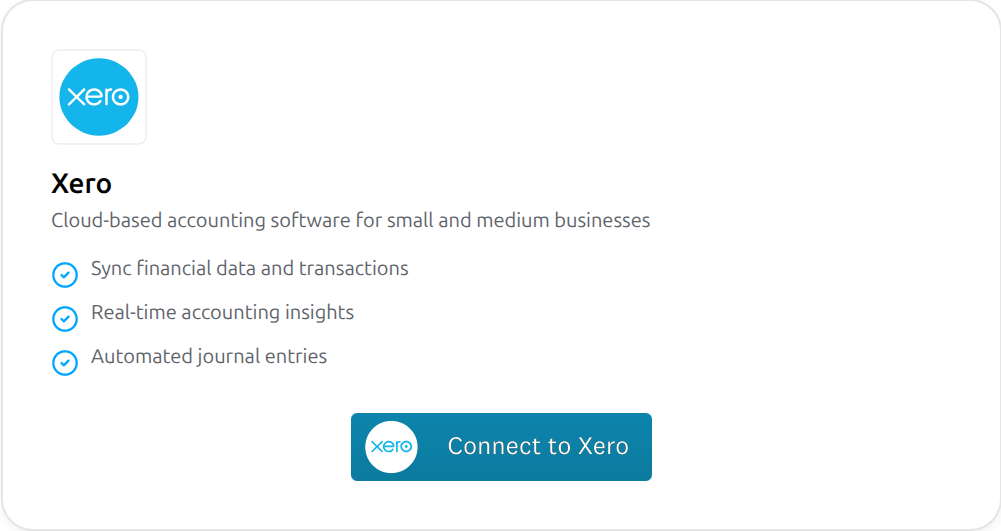
From your dashboard, navigate to the "Integrations" section. You'll see the Xero integration option with a "Connect to Xero" button.
Authorize Connection
Click the "Connect to Xero" button. You'll be redirected to Xero's secure authorization page where you can log in to your Xero account.
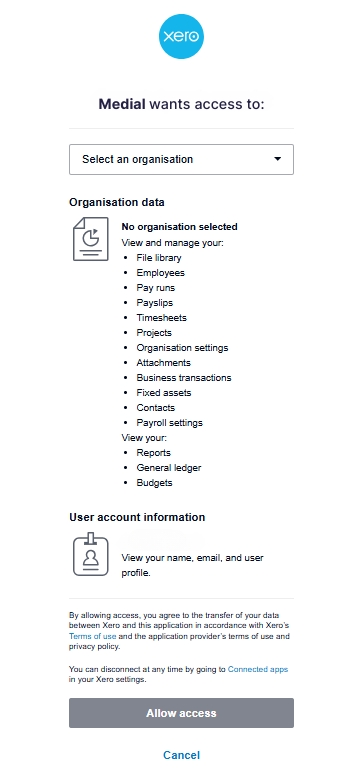
Select Organization
After logging in, you'll be asked to select which Xero organization you want to connect. Choose your organization and click "Allow Access".
Confirmation
You'll be redirected back to Medial and your Xero account will be connected. The connector card will now show "Connected" status with your organization name.
Permissions
Medial requests read-only access to your Xero data. We never modify your accounting data and only use it to provide intelligent insights and answers to your questions.
Disconnecting Xero
To disconnect an organization, go to "Integrations", find the organization in the table, click the menu icon (⋮), and select "Disconnect".
This will permanently remove all synced data from Medial and revoke the connection with Xero. Your data in Xero remains unchanged. You can reconnect at any time.
Chat with Xero Data
Ask questions about your financial data using natural language
Using the Xero Chat Interface
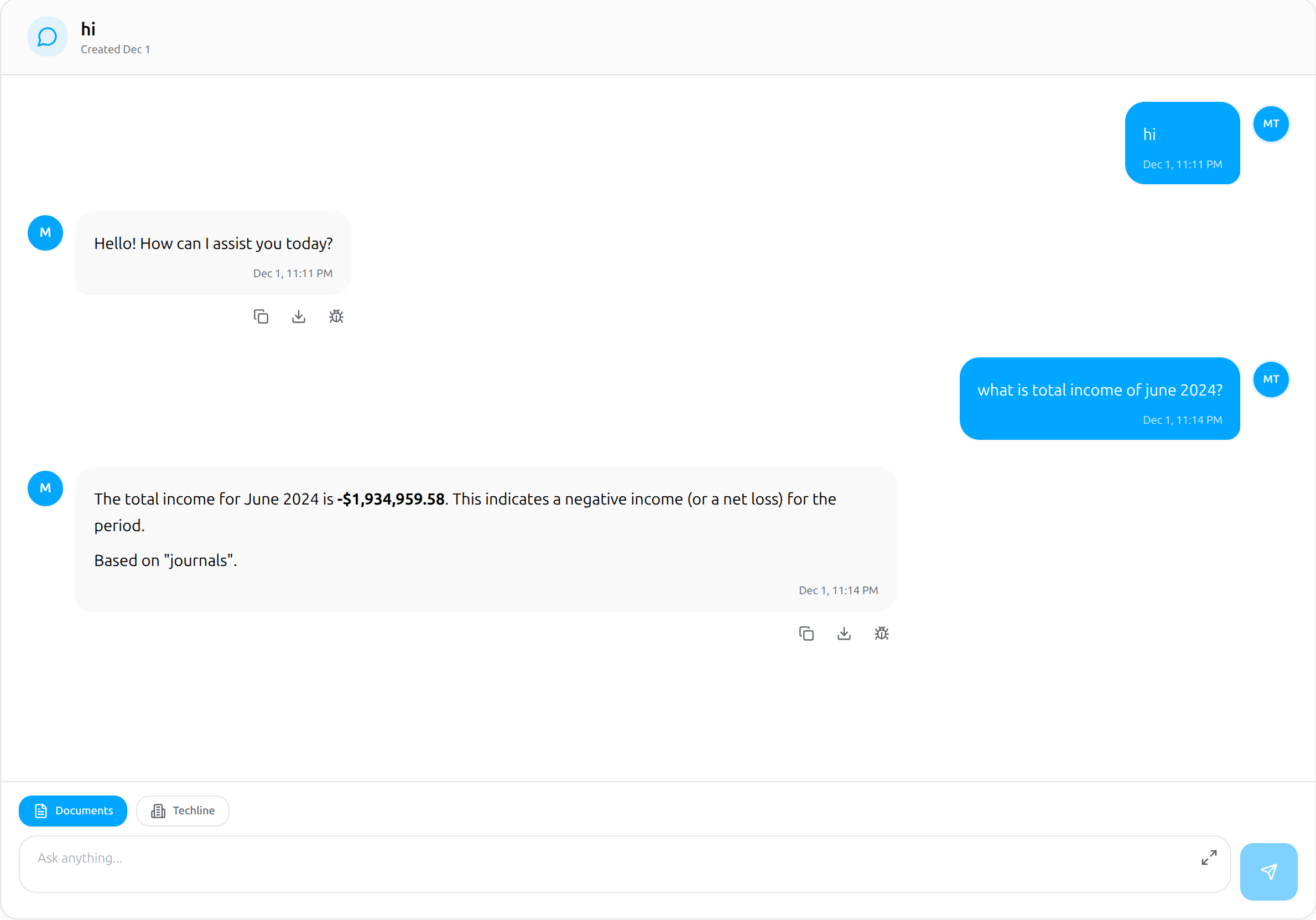
Once your Xero account is connected, you can interact with your financial data through our AI-powered chat interface. Simply ask questions in plain English and get instant insights.
Example Questions You Can Ask:
"What's my total revenue for this month?"
"Show me my top 5 expenses from last quarter"
"List all unpaid invoices"
"What's my current cash position?"
"Compare this year's revenue with last year"
Features:
- Real-time access to your latest Xero data
- Natural language understanding - no need to know accounting terminology
- Contextual conversations - ask follow-up questions
- Formatted responses with tables, charts, and summaries

Pro Tip
Be specific with date ranges and categories to get more accurate results. The AI understands relative dates like "last month", "this quarter", or "year-to-date".
Chat with Files
Upload documents and get instant insights
Document Analysis
Upload PDFs, spreadsheets, and other documents to chat with their contents. Our AI can extract information, summarize content, and answer questions about your files.
How to Upload Files:
Navigate to the "Document" section from your dashboard
Click "Select files" or drag and drop your files into the upload area
Wait for the file to process (usually takes a few seconds)
Start asking questions about your document
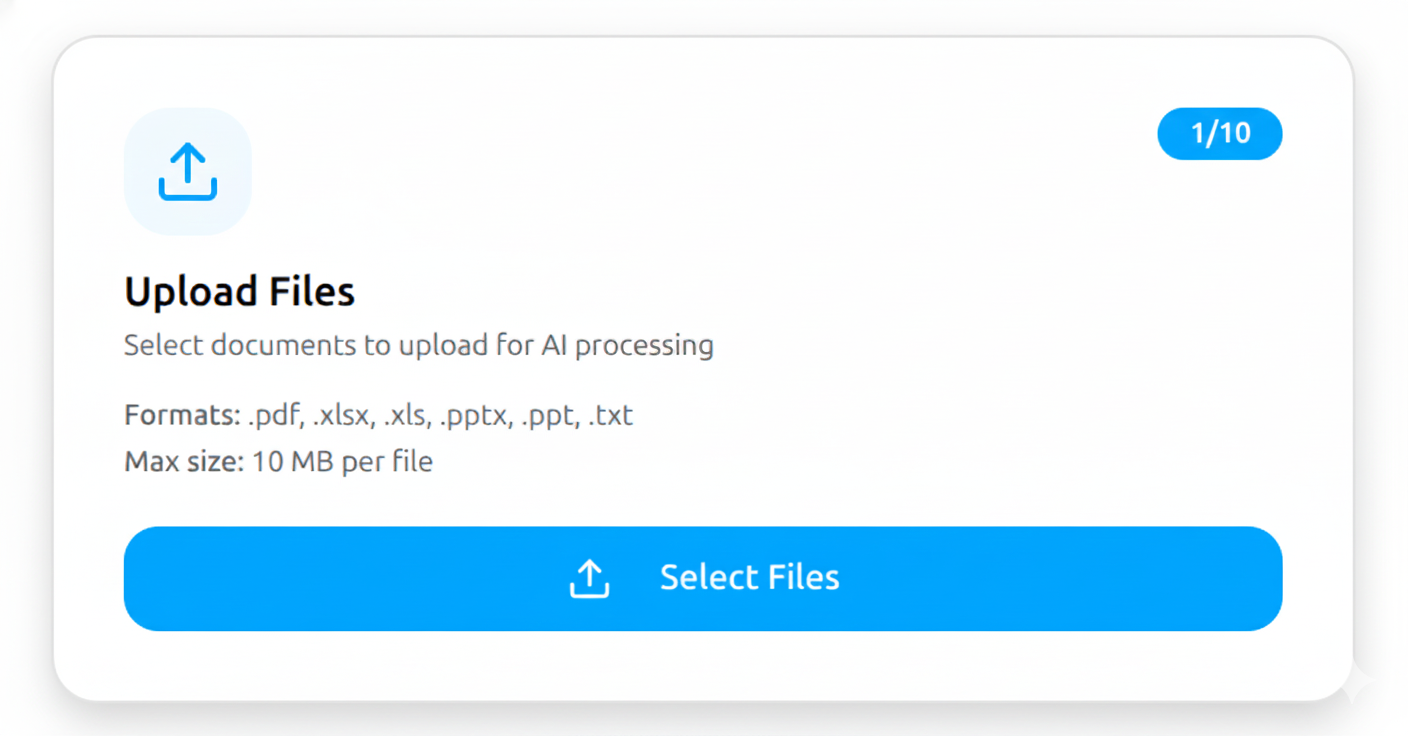
Supported File Types:
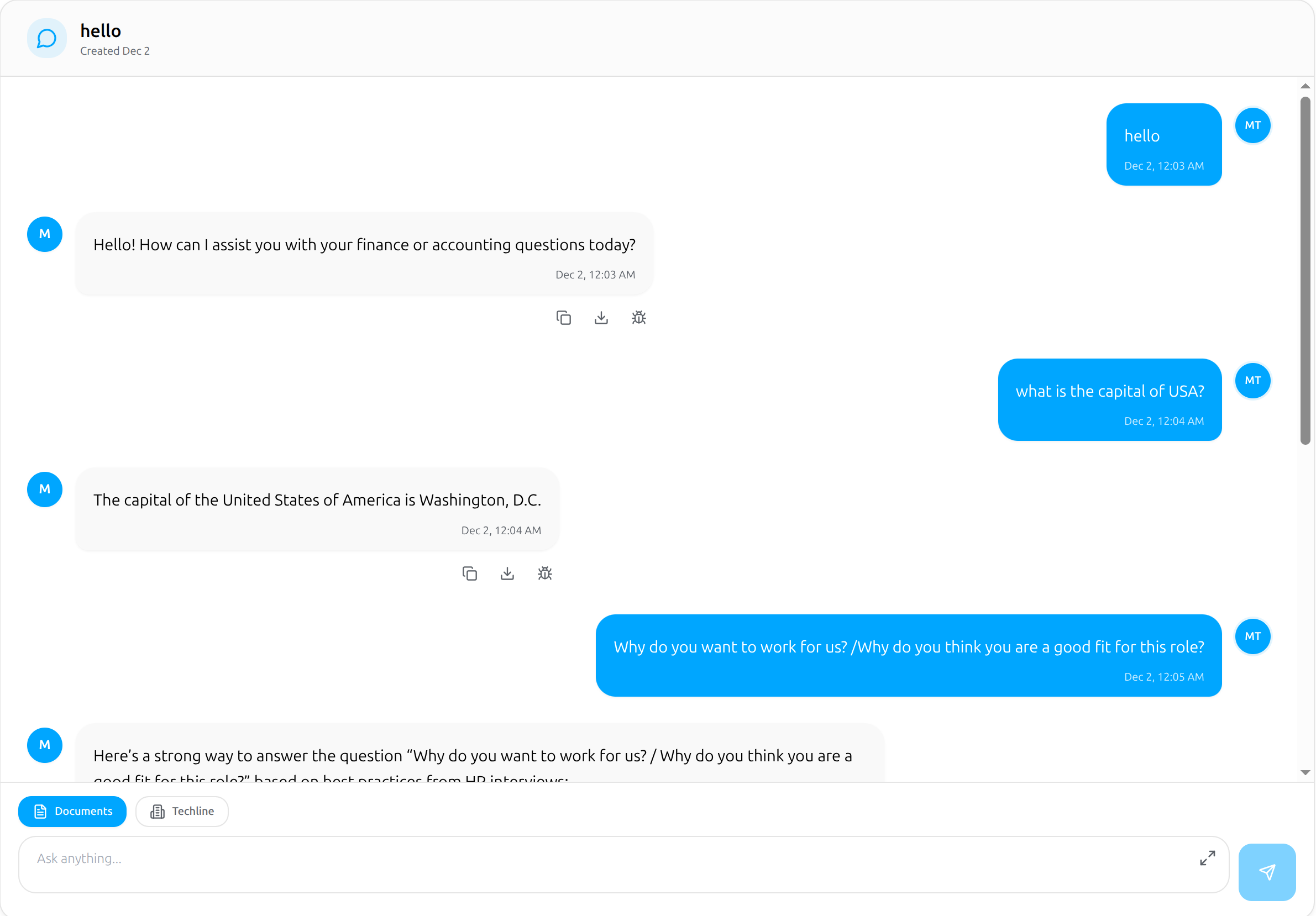
Example Use Cases:
- •Summarize lengthy reports and contracts
- •Extract specific data from invoices
- •Analyze financial statements
- •Compare data across multiple spreadsheets
- •Find specific information in documents
File Size Limit
Maximum file size is 10MB per upload. For larger files, consider splitting them into smaller sections.
Data Flow
Understanding how your data is processed and protected
How Medial Works
Medial is an AI-powered accounting assistant that connects directly to Xero. It pulls financial data from Xero (read-only) and allows users to query it using natural language.
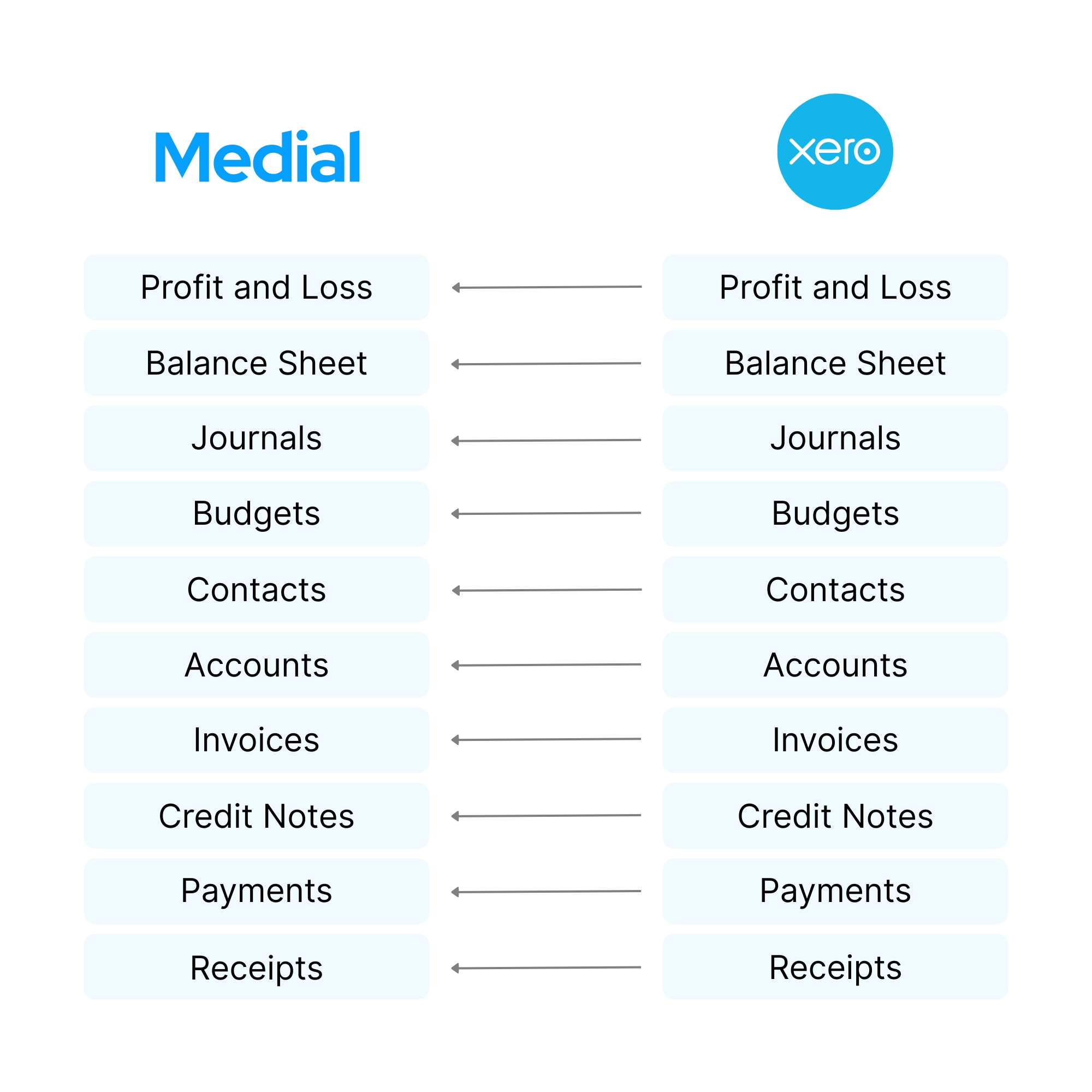
Your data security and privacy are our top priorities. Here's how data flows through our system:
Data Connection
When you connect to Xero or upload files, you're establishing a secure, encrypted connection. All data transmission uses industry-standard TLS encryption.
Secure Storage
Your data is stored in encrypted databases hosted on secure cloud infrastructure. We use enterprise-grade encryption at rest and implement strict access controls.
AI Processing
When you ask a question, only the relevant data is retrieved and sent to our AI engine. The AI processes your query and generates insights based on your specific data.
Response Delivery
The AI-generated response is delivered back to you through our secure interface. Your data never leaves our secure environment and is never used to train AI models.
Security Commitments:
Read-Only Access
We only request read-only permissions for Xero. We cannot modify your accounting data.
Data Isolation
Your data is completely isolated from other users. No cross-contamination.
No AI Training
Your data is never used to train AI models or shared with third parties.
Full Control
You can disconnect integrations or delete your data at any time.
Frequently Asked Questions
Common questions about Medial
Book a Demo
Interested in seeing how our platform can transform your business? Schedule a personalized demo with our team.
What to expect in your demo:
A personalized walkthrough tailored to your business needs
Live demonstration of AI-powered financial insights
Q&A session to address your specific questions
Discussion of integration with your existing systems
Still Have Questions?
Our support team is here to help you